2.0.0
Stephen Valdinger
53
PowerShellUniversal
02/06/2026

About
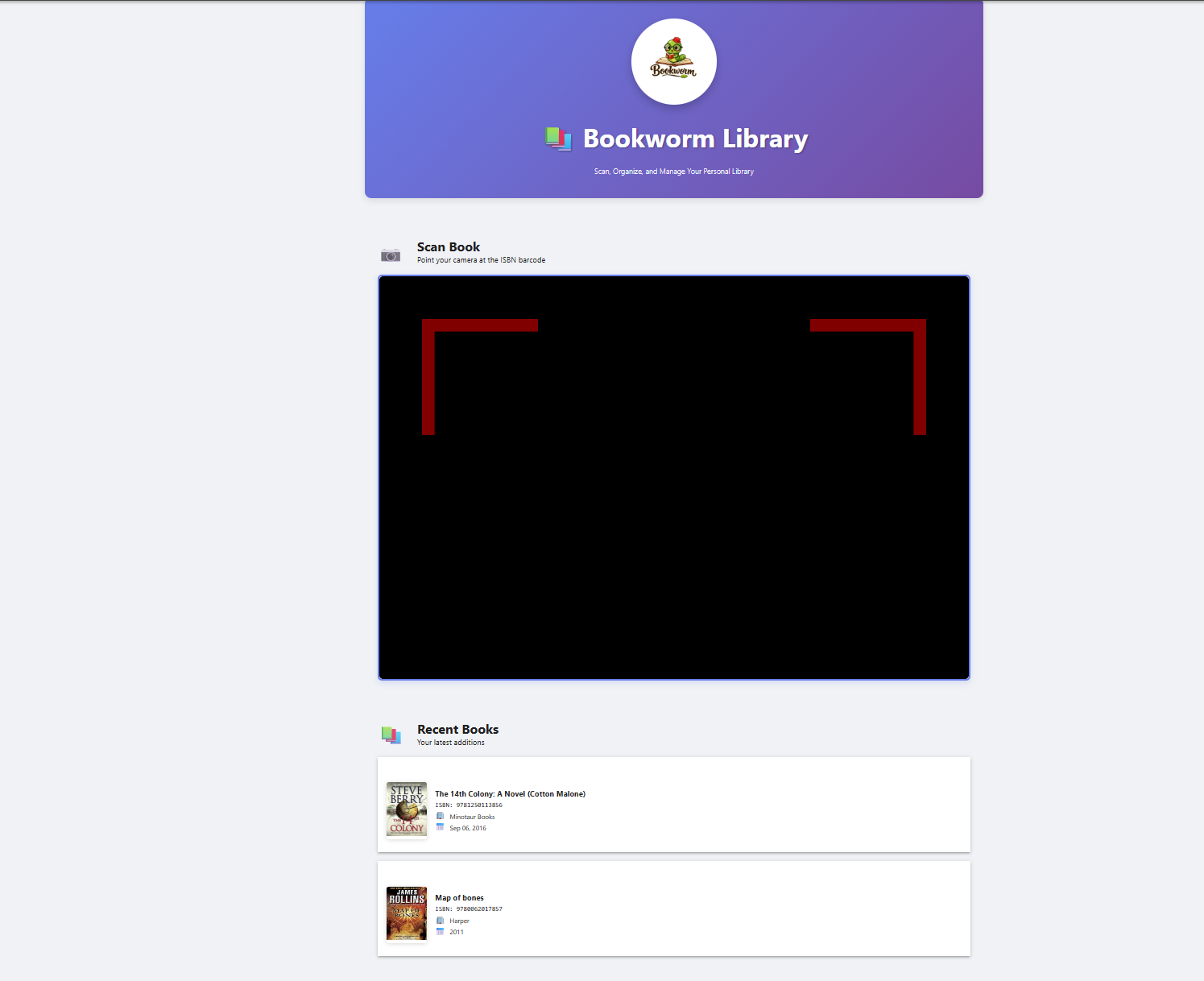
Bookworm is a PowerShell Universal app that turns your device into a personal library cataloging system. Simply point your camera at an ISBN barcode, and Bookworm will automatically fetch the book's metadata from the Open Library API and add it to your collection.
Features
- 📷 Barcode Scanner - Use your device's camera to scan ISBN barcodes via PowerShellUniversal.Component.BarcodeScanner
- 📖 Automatic Metadata - Fetches book details from Open Library (title, author, publisher, cover image, etc.)
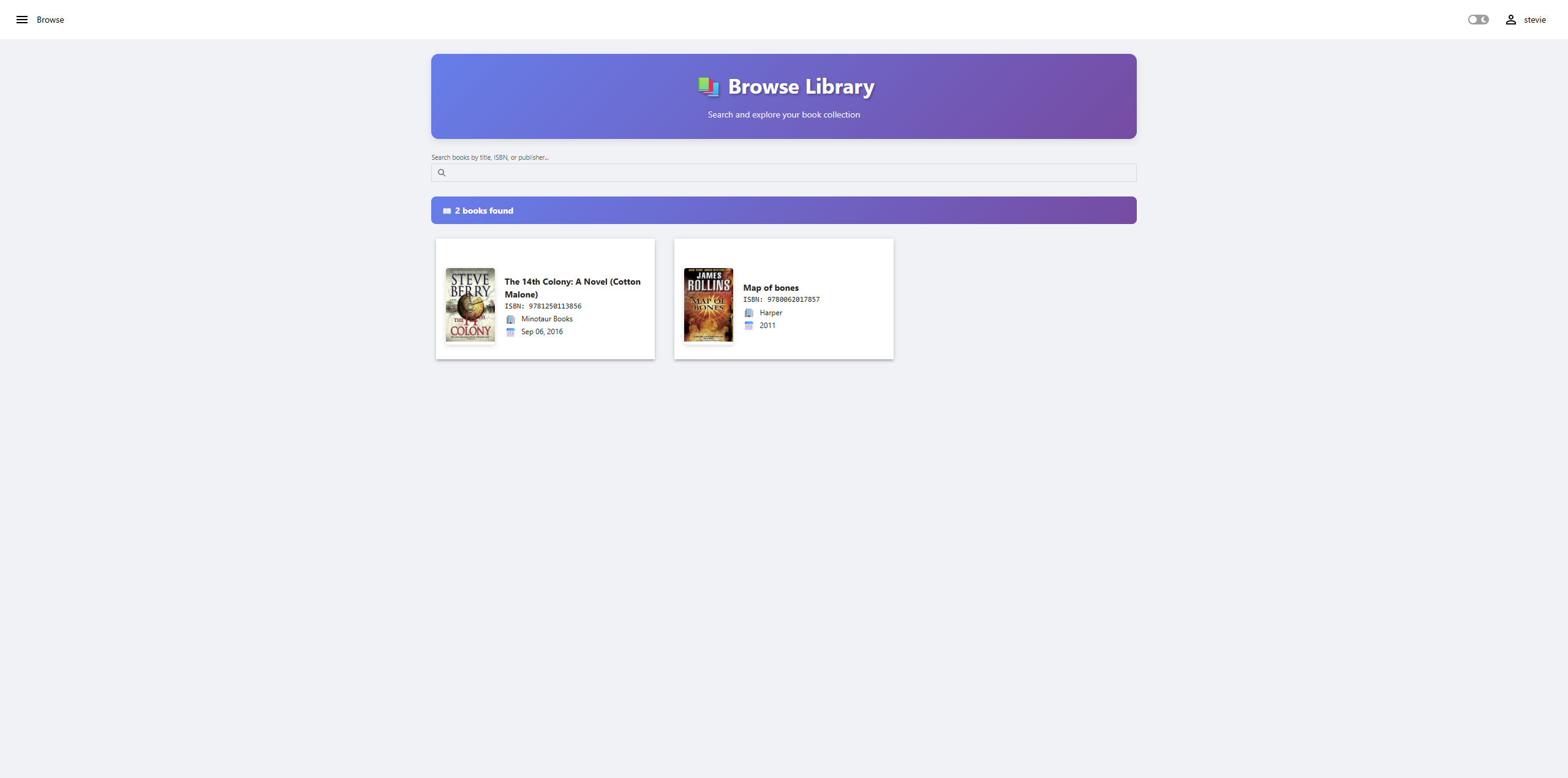
- � Browse & Search - Browse your entire collection with real-time search filtering
- �🗄️ SQLite Database - Lightweight, portable storage for your book collection
- 🌙 Dark Mode Support - Looks great in both light and dark themes
- 📱 Mobile Friendly - Responsive design works on phones, tablets, and desktops
Installation
Prerequisites
- PowerShell Universal v5.0 or later
- PowerShell 7.0+
- SQLite 3+
Manual Steps
-
Clone the repository
git clone https://github.com/yourusername/PowerShellUniversal.Apps.Bookworm.git -
Copy the module to your PowerShell Universal modules folder
Copy-Item -Path ".\PowerShellUniversal.Apps.Bookworm\PowerShellUniversal.Apps.Bookworm" -Destination "$env:ProgramData\UniversalAutomation\Repository\Modules\" -RecurseOr use the included sync script:
.\tools\Sync-InstalledModule.ps1 -SourcePath .\PowerShellUniversal.Apps.Bookworm\ -RestartService
Within PowerShell Universal
- Login to the PSU console
- Navigate to Platform > Gallery
- Search for PowerShellUniversal.Apps.Bookworm
- Click Install
- Navigate to yourpsuinstance/bookworm to access the app
Usage
Scanning Books
- Navigate to the Bookworm app in your PowerShell Universal instance (http(s)://yourpsuinstance/bookworm)
- Allow camera access when prompted
- Point your camera at the ISBN barcode on the back of a book
- The app will automatically:
- Detect the barcode
- Fetch book metadata from Open Library
- Add the book to your collection
- Display a success notification
Viewing Your Library
- Recently scanned books appear in the "Recent Books" section on the Home page
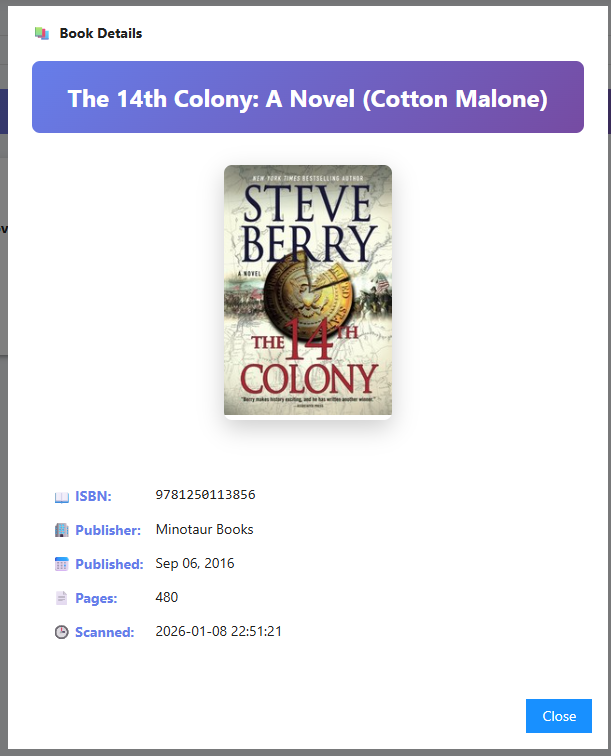
- Click on any book to view detailed information including:
- Cover image (when available)
- ISBN
- Publisher
- Publication date
- Page count
- First sentence (when available)
Browsing & Searching
- Navigate to the Browse page from the navigation menu
- View all books in your collection as a responsive grid of cards
- Use the search box to filter books by:
- Title
- ISBN
- Publisher
- Click any book card to view full details in a modal
Data Storage
Book data is stored in a SQLite database at:
- Windows:
C:\ProgramData\Bookworm\Bookworm.db - Linux:
~/Bookworm/Bookworm.db
Testing
Bookworm includes Playwright-based UI tests using the PSPlaywright PowerShell module.
Setup
-
Install prerequisites
Install-Module -Name PSPlaywright -Scope CurrentUser Install-Module -Name Pester -Scope CurrentUser -MinimumVersion 5.0 -
Install Playwright browsers
.\tests\Setup-PlaywrightTests.ps1
Running Tests
# Run all tests with detailed output
.\tests\Invoke-BookwormTests.ps1
Run against a different URL
.\tests\Invoke-BookwormTests.ps1 -BaseUrl 'https://yourpsuinstance/bookworm'
Run with visible browser (non-headless)
.\tests\Invoke-BookwormTests.ps1 -Headless $false
Test Coverage
- Homepage rendering and components
- Navigation between pages
- Browse page search functionality
- Book details modal interactions
- Dark mode compatibility
Screenshots
Home Page
Book Details Modal
Browse Page
License
This project is licensed under the MIT License - see the LICENSE file for details.
Acknowledgments
- Book metadata provided by Open Library API
- Built with PowerShell Universal
Installation Options
Install within the PowerShell Universal v5 admin console. More Info

Copy and Paste the following command to install this package using Microsoft.PowerShell.PSResourceGet.
PS > Install-PSResource PowerShellUniversal.Apps.Bookworm
Version History
| Version | Published |
|---|---|
| 2.0.0 | 02/06/2026 |
| 1.2.1 | 01/24/2026 |
| 1.2.0 | 01/22/2026 |
| 1.1.0 | 01/22/2026 |
| 1.0.2 | 01/11/2026 |
| 1.0.1 | 01/09/2026 |
| 1.0.0 | 01/09/2026 |